Showing posts with label BIM360. Show all posts

Sunday, April 12, 2020

BIM 360 Doc - Schedule Publish Feature

While most of us are going through the stay-at-home ordeal, this gives me some time to finish this blogpost that has been sitting in my draft folder since last December. 

It also happens to be the week Revit 2021 that is just released. Well, none of that actually has anything to do with this post.

This is one of the nice features introduced to BIM 360 doc. I don't recall when Autodesk introduced it but I have been using it for all the new projects we host on BIM 360 doc.

It is my understanding you have to have "Team" enabled within the hub in order to use it. This feature itself is very subtle. You would very much miss it if you don't know this existed.


This feature can only be accessed if you are the Project Admin for this particular project. You can find it under Project Admin --> Services tab --> Design Collaboration This is also where you create Team in the first place. 
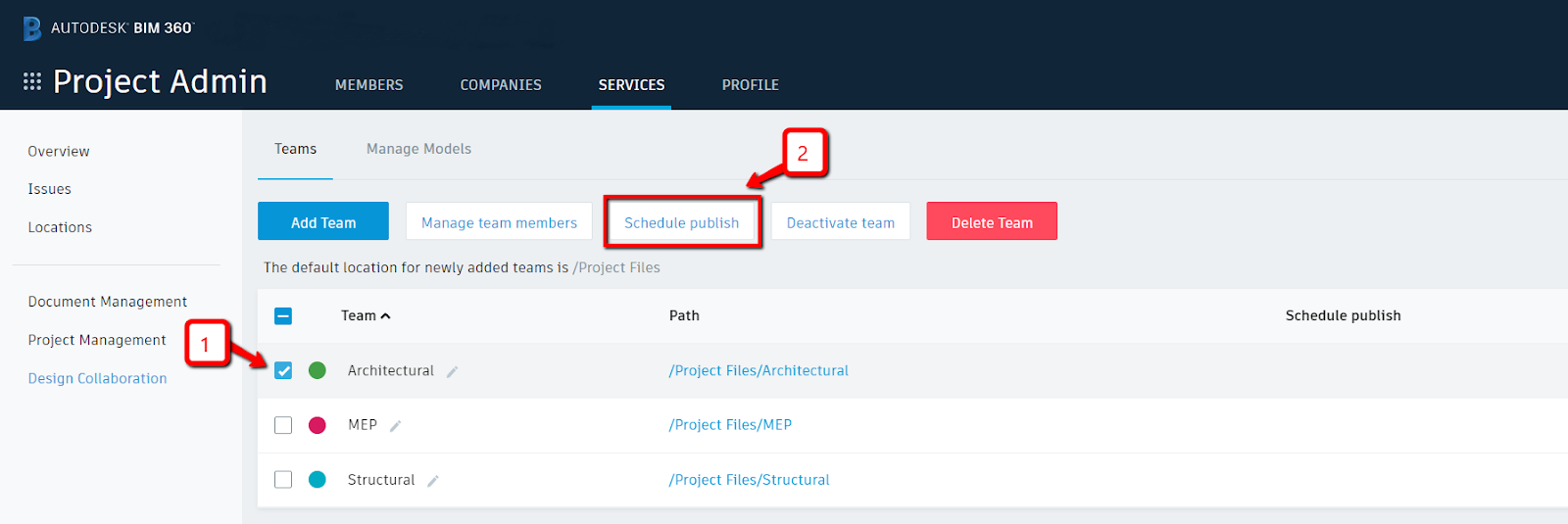


Note that you won't even see this Schedule Publish option unless you check the box next to the specific team (e.g. Architectural here). One more thing though, you will need to have at least one model initiated to the cloud in that specific team folder for this "Schedule Publish" icon to appear.

Once Schedule Publish is selected, you can choose your preference. For some reasons, while I am preparing this post, only "Weekly" can be chosen as option. (I used to be able to choose daily as option). Then you can choose any day/time of your preference.


When all the options are set, you can move that slider to enable the schedule. 


Select Close and you are done. What it will happen is every week (e.g. Friday) BIM 360 will automatically publish a copy of the "live" Revit model to the site. It will be the last SWC (Sync with Central) version right before the scheduled time. As a result, a copy of the model is populated in the Team folder. 

You can click on the model and it will launch the online viewer for you. You can also download or share with your team. Most importantly for me, it creates an automatic archived file for the project.

This feature alone has saved our projects several times when we need to retrieve model elements from the previous version. 

I highly recommend your team to do this to take advantage of this feature. 

In closing, I hope I will have a bit more time to write more during this work from home situation. 

Stay safe everyone!


Thursday, November 7, 2019

BIM 360 Doc - Giving It a Home

We have been hosting many new projects on BIM 360 Doc these days. It's not a new concept of collaborating our work with our extended teams over the cloud platform anymore. I still come across with a handful of consultants that have not used BIM360 yet.

While providing an on-boarding process to get them up to speed, I would put a placeholder Revit file to where their own discipline folder resides. This way, it gives them some physical location to know where they should initiate their Revit model to. Since we are using the Team feature and restrict access for each consultant, this small step often helps the extended team.


To set this up, I still need to initiate each placeholder model one at a time.


Once this is done, it will show up from the open window dialog box.


I have a stack of these models ready to be used


To keep this file manageable, I use a blank Revit file and only model these "3D texts" so the initiation time to the cloud takes only seconds. 

Well, don't forget to delete these placeholder files (via the browser) once the consultants have their own up in the BIM 360 hub. 

What do you think?
Do you have any tips to share when collaborating your work over BIM360?
Send your comments then. 

Friday, August 17, 2018

Quick Way to Identify BIM360 Local File

I stumped on this the other day and thought it is interesting to share. If you have ever worked on any BIM360 (C4R) project, you should know by now that your local file resides on a hidden location other than your default Revit location.

From time to time, if you have sync issue between your local file with the central, you can run into issue where your local file gets corrupted. Autodesk has a KB article to walk you through the process of clearing out the local file. In this hidden location, your local C4R file does not resemble your actual file name; instead, it is named after some GUID number. In other words, you can't just find your corrupted local file and get rid of it. It takes some trial by error to clear out this folder when I first encounter this issue. From the KB, it tells you to open the journal file to determine the filepath of the damage model. I can tell you if you have never understand how to read a journal, this is going to be a tedious process. **You can however always clear everything inside the local cache but sometimes you can't afford to do so if you have a few projects working concurrently.**

The following tip might offer a quicker way to get to the damage model without opening the journal.
Reminder: You are doing this at your own risk!


In the event you have a corrupted local file. Go to Open --> file --> BIM 360, select your project hub folder and hit ENTER on your keyboard. Revit will prompt you with an error "BIM 360://your project hub name/......... File not found. Please verify the correct file name was given."

The one that starts with "{" and ends with "}" is the local file folder of your model.

Next, go to your window explorer and locate your user local data folder such as this:

%LOCALAPPDATA%\Autodesk\Revit\Autodesk Revit 20##\CollaborationCache

*Make sure you locate the correct Revit version.*

From there, your will see the same folder with the exact name ......


Go ahead to either move this folder out of this location or I normally just rename to a different name. Revit will then generate a "New" local file when you try to open the model again.

Hope this helps.
Happy syncing!